How to Install
Before You Begin
- This set of drivers has been designed for and tested with the original Sony PlayStation 3 peripherals—SIXAXIS, DualShock, and Navigation controllers. If your controller works, great; if it does not, please do not contact support, as there is nothing we can do.
- Do not attempt to pair a PS3 controller on Windows via the built-in device discovery dialog:
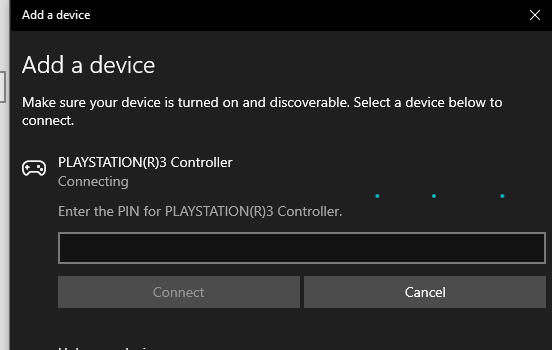
This will not work and can cause Bluetooth connection to fail completely. If you have already done this, open the Bluetooth Settings page in Windows and check the list for entries similar to:

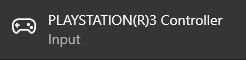
Select the entry and click Remove device.
- For the setup to work correctly, Windows UAC must be enabled. If in doubt, see how to turn User Account Control on or off in Windows.
- A working Bluetooth host radio must already be present. BthPS3 v2.x requires a USB radio. BthPS3 v3.0.0 and newer also accept radios on Microsoft's Bluetooth Extensibility Transport (BTHX) bound to BthMini.sys (for example Intel PCIe iBtPciBus). v3 setup checks this up front and refuses to install on an unsupported transport—see What Bluetooth hosts are supported?.
Installing BthPS3 Drivers
Bluetooth setup only
The following steps are only required if you plan on using your PS3 controller wirelessly over Bluetooth. If you just plan on using a USB cable, then all you need is DsHidMini.
- If the DsHidMini installation wizard downloaded the BthPS3 installer for you, look for it in your Downloads folder—it should be named
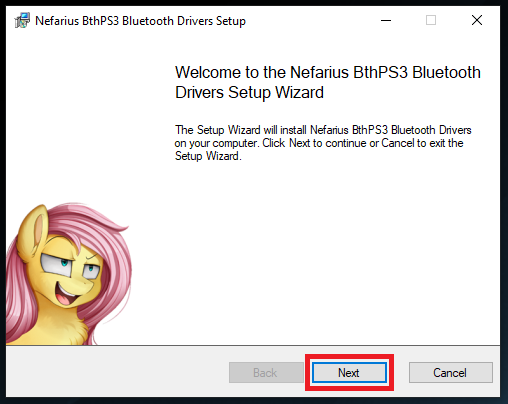
Nefarius_BthPS3_Drivers_x64_arm64_vx.x.x.msi(the x's represent the version number). Otherwise, download the latest published MSI from the BthPS3 GitHub Releases page. Release tags may besetup-v3.x.yor a latersetup-v3.x.y-rNrespin; the MSI product version staysMAJOR.MINOR.PATCH. Always take the newest published installer. - Double-click the installation file to start the Installation Wizard, then click Next.
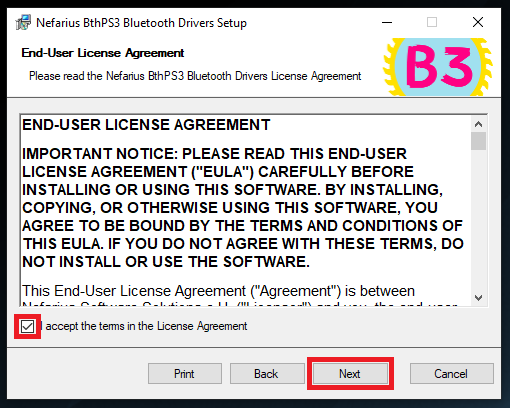
- On the End-User License Agreement screen, read the agreement, check the box to accept the terms, then click Next.
- The next screen shows which drivers will be installed. BthPS3 Bluetooth Drivers and Open post-installation article are selected by default. Leave them checked and click Next.
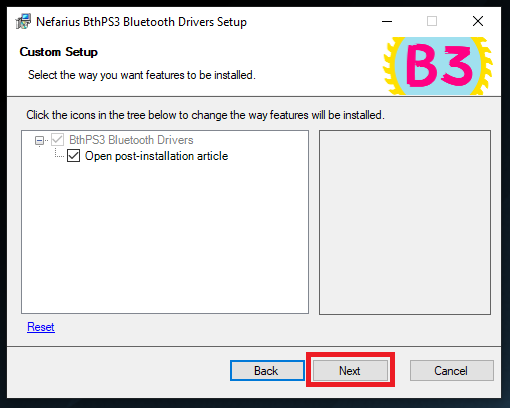
-
Choose Modern hot-plug or Legacy sequential. The modern method does not require a restart on most USB radios; the legacy method is more compatible but requires a restart. Neither path can install on an unsupported host transport, and both can still fail if helper tools are missing. Click Next.
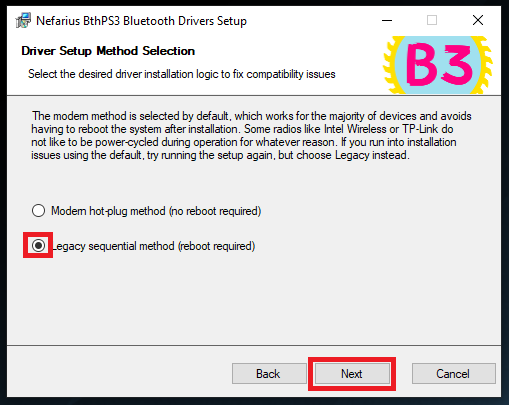
BthPS3 v3.0.0 and newer
BTHX/BthMini radios such as Intel PCIe
iBtPciBuscannot be power-cycled without a reboot. The modern method still tries to re-enumerate them, but you should expect a reboot prompt (or setup error 9002—choose Ignore, then reboot). Some USB radios (Intel Wireless, TP-Link) also dislike being power-cycled; if modern install fails, run setup again and choose Legacy.- When the UAC prompt appears, click Yes. If you do not see it, check the taskbar for a shield icon.

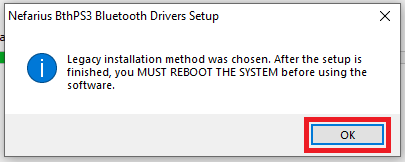
- If you chose the Legacy method, you will be prompted to reboot. Click OK (you can restart at the end).
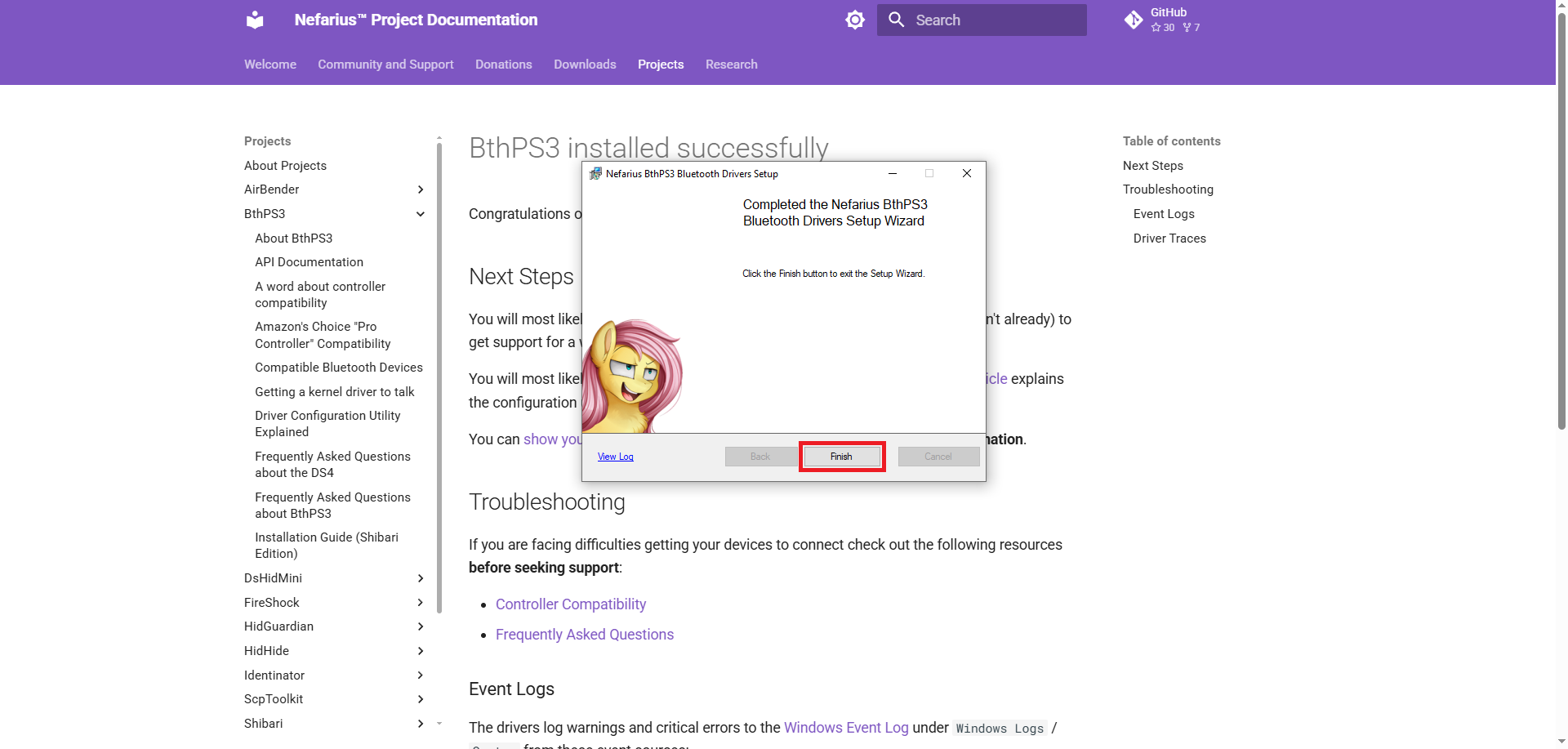
- After installation, a webpage will open with important information. Read it, then click Finish to close the wizard. Restart your computer if required.
- When the UAC prompt appears, click Yes. If you do not see it, check the taskbar for a shield icon.
Congratulations! BthPS3 is now installed. Plug in your controller via USB to pair it for Bluetooth—this is the only supported way to pair your controller.
Files land under %ProgramFiles%\Nefarius Software Solutions\BthPS3\. That folder includes the drivers, the configuration utility, helper tools such as nefcon, and nefarius_BthPS3_Updater.exe. The updater is registered at the end of setup; registration failure (for example antivirus quarantine) does not fail the driver install. See Does BthPS3 update itself?.
Silent or unattended install (BthPS3 v3.0.0 and newer)
Administrators can install without the wizard:
msiexec /i Nefarius_BthPS3_Drivers_x64_arm64_vx.x.x.msi /qn- Add
USE_MODERN=falseto force the legacy sequential path (reboot required).
From setup setup-v3.0.0-r5 onward, a silent, basic, or reduced-UI install always opens the post-installation article. The full wizard still honours the Open post-installation article checkbox.