HID Device Modes Explained
Important topic
This is one of the core features of the driver and understanding it is vital for a great gaming experience, so take your time and study thoroughly 😘
DsHidMini aims for maximum possible compatibility with existing tools or games without the need for any custom code. It supports different "HID Device emulation modes", meaning upon boot-up it can present the controller as different types of HID devices, each sporting a unique set of specialized features outlined below. The device mode you choose dictates the level of compatibility with certain third-party software and how the controller is "seen" by processes. Read on for details.
How to adjust the settings
Connected controllers using DsHidMini can be adjusted in ControlApp. On v3.9.0 or newer, open DsHidMini Control App from the Start Menu (Nefarius Software Solutions → DsHidMini). On an older installer, download and run ControlApp.exe. You can still download a newer build from the build server if you want one. It needs to be run as Administrator to allow changing the current HID Device Mode. After every change, press the "Apply changes" button to make them effective, which will cause the affected controller to disconnect on Bluetooth and restart on USB. For Bluetooth, it needs to be powered on again manually afterwards by pressing the "PS" button. See the ControlApp overview for first-run setup, testers, and diagnostics.
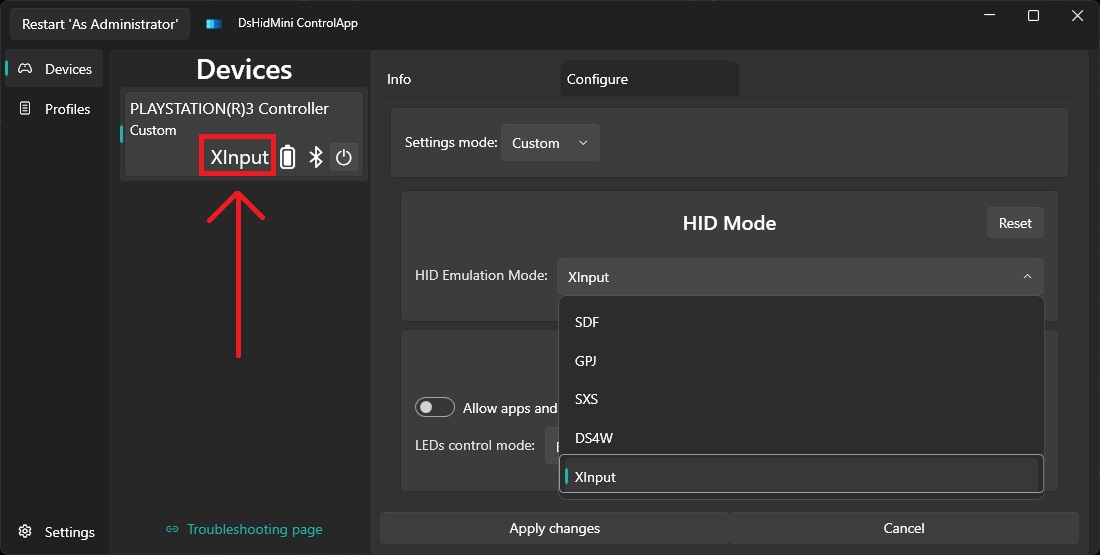
The HID Device Mode is a per device, per connection type setting, meaning that:
- Each connected controller can be set to a different mode
- The same controller can be in different modes when wired or wireless, so always check which mode the device is set to when transitioning from wired to wireless and vice versa
HID Device Modes
The games and tools outlined here are recommendations, please feel free to experiment to your heart's content ❤️
SDF
TL;DR:
Use this mode for best compatibility with the older pre-Qt versions of the PCSX2 PlayStation 2 Emulator. For PCSX2 Qt follow this video guide!
Single Device with Force Feedback mode. In this mode, the controller is presented as one "almost"-DirectInput-compatible HID device with pressure sensitive features exposed as additional sliders. The rumble motors can be controlled via Force Feedback effects (Constant Force Effect). The advantage of this mode is 100% compatibility with all unmodified versions of PCSX2 with the LilyPad gamepad plugin (shipped by default).
The downside of this mode is that the pressure axes exceed the limit of supported axes per device and therefore pressure sensitive axes will not be available in games using DirectInput. They will however work fine with any engine using the low level HID API instead.
The default LED behavior in this mode is the charging animation and can't be altered.
GPJ
TL;DR:
Use this mode with x360ce or to experiment with older games.
Gamepad plus Joystick mode. In this mode, the controller is presented as two separate HID devices; a traditional gamepad featuring the same set of features as a common Xbox 360 controller and a Joystick, only handling the pressure axes. This mode guarantees the best potential compatibility with legacy solutions purely relying on DirectInput and works around the mentioned axis limit. The rumble motors can be controlled via Force Feedback effects (Constant Force Effect).
The default LED behavior in this mode is the charging animation and can't be altered.
CGP
TL;DR:
Use this mode for the best compatibility with older DirectInput-only games (e.g. Legacy of Kain: Defiance) that mishandle the extra pressure-sensitive axes exposed by SDF or GPJ. See issue #68 for background.
Common Gamepad mode. In this mode, the controller is presented as a single, minimal, DirectInput-friendly HID device with the same standard buttons, sticks, and triggers as SDF, but with no pressure-sensitive slider axes at all. Some older games get confused (missing or out-of-order buttons) once a device declares more axes than DirectInput's classic limit, which is exactly what SDF's extra pressure sliders do; CGP sidesteps that entirely by never declaring them. Unlike GPJ, it also only ever spawns a single device, avoiding issues with games/emulators that only look at the first controller they see. The rumble motors can be controlled via Force Feedback effects (Constant Force Effect), same as SDF and GPJ.
The trade-off is that pressure-sensitive button data is unavailable in this mode — if you need it, use SDF or GPJ instead.
The default LED behavior in this mode is the charging animation and can't be altered.
SXS
TL;DR:
Use this mode with the RPCS3 PlayStation 3 Emulator and with the SCP XInput Bridge proxy DLL (PCSX2 Qt, GInput and similar). For Steam and Steam games, use XInput instead.
SIXAXIS.SYS mode. In this mode, the driver emulates the behavior of the official Sony sixaxis.sys driver shipped with the PS Now application. Its known working consumers are RPCS3, which drives LEDs, rumble, pressure buttons and motion over this layout, the SCP XInput Bridge proxy DLL, and the PS Now application.
Steam also recognizes this layout as a PlayStation 3 controller, but that is not a reason to pick it. In the tested SXS configuration, Steam Input did not forward game rumble to the pad, whatever the driver or SDL reported, and by default Steam reads an SXS pad over DirectInput with no output at all. GPJ and CGP share the PlayStation 3 vendor and product id, but Steam Input rumble was not measured in those modes. XInput mode is the Steam recommendation. If you still need SXS visible to Steam or to another SDL3 program, ControlApp Settings has Let Steam talk to SXS controllers natively (the user environment variable SDL_JOYSTICK_HIDAPI_PS3_SIXAXIS_DRIVER=1); that makes SDL3 use its SIXAXIS driver, which gives SDL3 programs rumble and player LEDs after a full restart of that program and, if the motors stay still, USB output transport Auto plus a replug. The full write-up is Steam, SXS, and rumble.
The default LED behavior in this mode is the charging animation. If a compatible application sends output reports to the device, the driver hands LED control to that application and stops the charging indicator until the device is restarted. LED authority Driver keeps the pattern selected in ControlApp. On the signed 3.25.0 driver, Steam's player-LED command clears the LEDs. Driver builds that decode sixaxis command 1 let those LEDs follow Steam when authority is Automatic or Application. RPCS3 keeps its existing output report.
DS4Windows
TL;DR:
Use this mode with Ryochan7's DS4Windows. Follow these instructions to set it up properly.
DualShock 4 mode. In this mode, the driver emulates a DualShock 4 with an artificial Vendor & Product ID supported by the "Ryochan7 Edition" of DS4Windows. You can use almost all features DS4Windows offers with a DualShock 3 (excluding nonexistent features like the track pad or the light bar) including XInput emulation.
The default LED behavior in this mode is the charging animation. Once the controller is picked up by DS4Windows, light bar changes will get translated to LED states (see this article for details) and rumble requests passed through.
Motion controls are currently not supported (no gyroscope or accelerometer) and therefore will not work with CEMU when the UDP Server is active.
XInput
TL;DR:
Use this mode with Steam and Steam games, RetroArch or any game with Xbox Controller support. Read here for details.
Xbox One Controller mode. This is the driver default when shipped. In this mode, the controller is emulating an Xbox One Controller with an artificial Vendor & Product ID. This mode guarantees the best potential compatibility with pretty much all modern PC games with Xbox (360/One) Controller support either standalone or shipped through Steam.
The default LED behavior in this mode is the charging animation and can't be altered. The lit LED does not represent the player index.