How to Install/Remove
Things to Know Before You Begin
DsHidMini V3 installation page!
Make sure to check the intro page for v3 before continuing.
Official Sony DualShock 3 / SIXAXIS is the target
Official Sony DualShock 3 / SIXAXIS and Navigation Controller hardware is supported, plus two documented PS1/PS2 USB adapters.
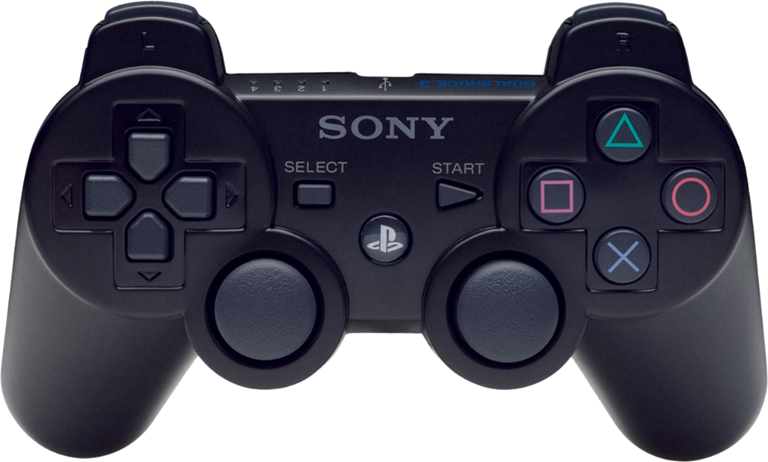 Aftermarket DualShock 3 clones are not supported. Do NOT contact support for random third-party pads — they usually will not work.
-
DsHidMini was designed to work with Official Sony PS3 DualShock 3 controllers. Most DualShock 3 controllers sold online these days are not original controllers. It can be difficult to tell these fake controllers apart from their original counterparts as they are made with the same molds and have the same symbols and labels on them as official DualShock 3 controllers. These fake controllers might be missing some features (such as motion controls or pressure-sensitive buttons) and most likely will not work with DsHidMini. If your non-official controller does work, take it as a win. However, if it does not, please do not contact support as there is nothing we can do. Two wired adapters are documented exceptions: see PS1/PS2 USB adapters.
-
If you want Bluetooth support you need to install BthPS3. This can be done either before or after installing DsHidMini.
-
For the setup to work correctly Windows UAC needs to be enabled. If in doubt, the following page has instructions on how to check its status: link here
Installing DsHidMini v3.x.x
Driver Installation
No pre-uninstall required
Previous versions of DsHidMini required you to uninstall old or outdated software that may cause conflicts. This is no longer required, so no matter what software you may have preinstalled, the installation steps below are always the same 😀
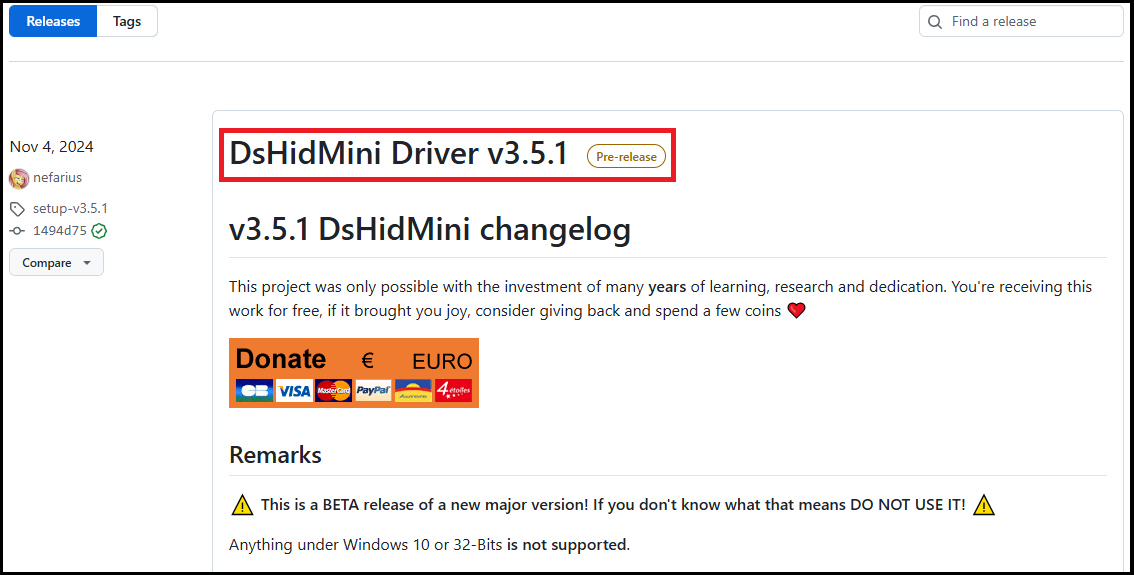
- Head to the DsHidMini releases page and open the latest v3 release.
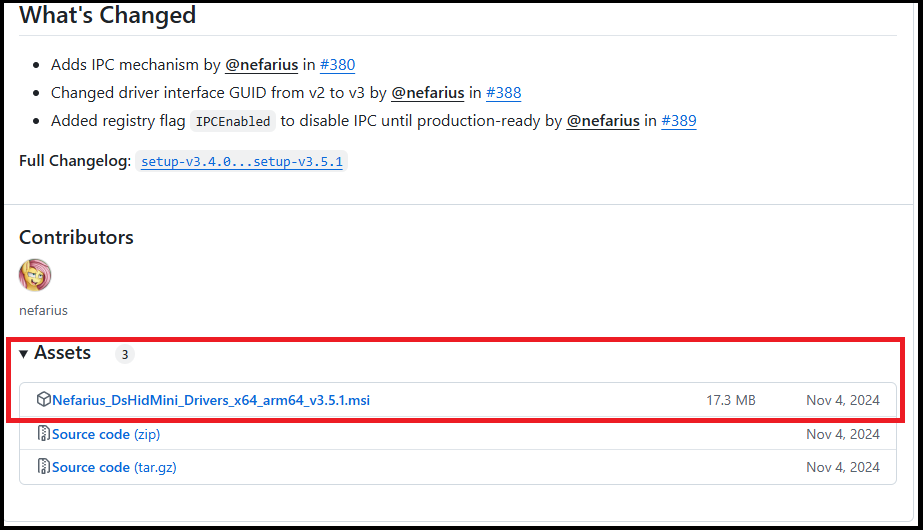
- Scroll down a bit and click on the word "Assets" to see the installation file named "Nefarius_DsHidMini_Drivers_x64_arm64_vx.x.x.msi" (the x's represent the current version number and may be different from the photo below). Click on that name and download the file to your computer.
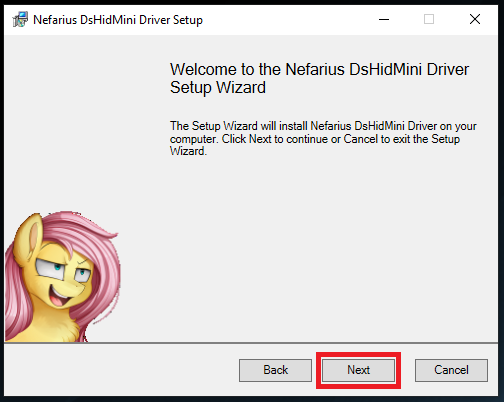
- Double click on the file you downloaded in the previous step to run the Installation Wizard. Click the "Next" button.
- The next screen is the "End-User License Agreement". Read through the agreement and click the box to accept the terms. Then click "Next".

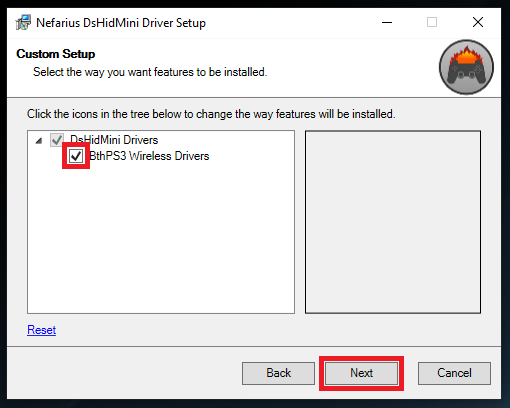
- The next screen shows what drivers will be installed. The "DsHidMini Drivers" option is selected by default. This is all you need if you intend to use your PS3 controller while connected to your computer using a USB cable. If you want to use your controller wirelessly over Bluetooth, click the box next to "BthPS3 Wireless Drivers". (Note: this only downloads the BthPS3 installation file, which must be run manually later.) Click "Next".
- The UAC window should pop up asking if you are ok with the wizard making changes to your computer. If you don't see it, check your taskbar for a shield icon and click that. After clicking "Yes" the installation wizard will continue.

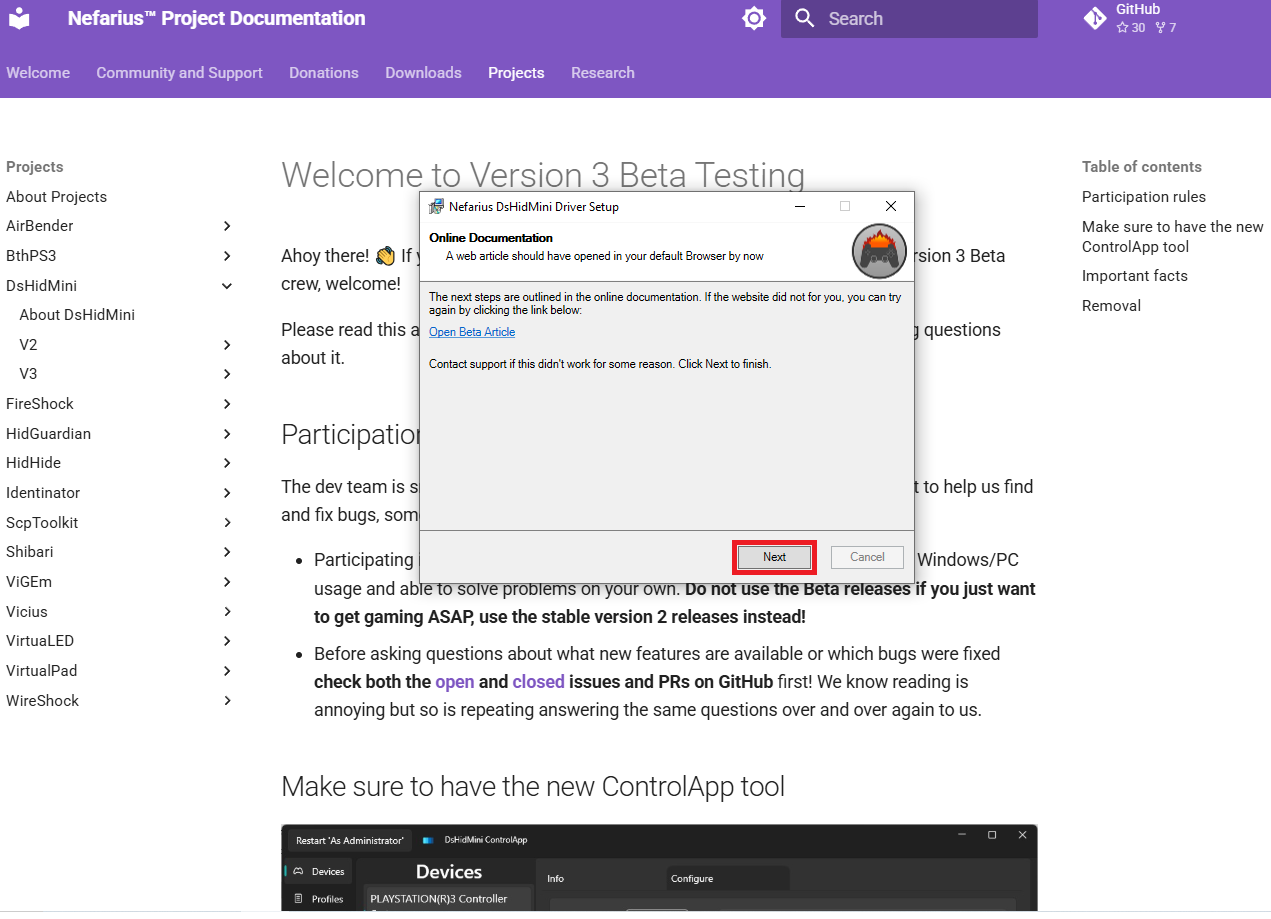
- After the DsHidMini Drivers have been installed, a webpage will open with important information. Please read through it. When done, click "Next", then "Finish" to close the wizard.
Congratulations! Now that DsHidMini (and optionally BthPS3) are installed with the default settings, your controller should be able to work with Windows and behave as if it were an Xbox Controller (XInput device). Continue with the next section to test this.
Checking Controller with ControlApp.exe
ControlApp is optional at runtime
ControlApp is a companion application for configuring DsHidMini controllers and does not need to be open for DsHidMini to work. No changes need to be made, as the default settings should work just fine. In this section, it is only being used to verify that DsHidMini is seeing your controller.
ControlApp ships with the installer
Starting with v3.9.0, the driver MSI installs ControlApp and adds a DsHidMini Control App shortcut to the Start Menu, under Nefarius Software Solutions → DsHidMini. Open that shortcut to launch the copy setup installed. If you want to try a newer build than the one that came with your installer, you can still download ControlApp.exe from the build server. Installers older than v3.9.0 do not include ControlApp. Download ControlApp.exe and run that file.
ControlApp needs .NET Desktop Runtime 10 (x64)
ControlApp requires the .NET Desktop Runtime 10 (x64) to run. Any 10.0.x release is accepted. The current installer checks for it and stops if it is missing. If ControlApp asks you to install the runtime, use .NET Desktop Runtime 10 (x64).
- Connect your PS3 controller to your computer with a USB cable. (This also automatically pairs your controller to your computer for Bluetooth if you installed BthPS3).
- On v3.9.0 or newer, open DsHidMini Control App from the Start Menu. On an older installer, download ControlApp.exe and double-click it.
- Starting with v3.16.0, the first launch opens Let's connect your controller. Follow the on-screen pairing checks. If this PC has no Bluetooth and you only use USB, choose Continue with USB only (v3.19.0 and newer). Details: ControlApp overview.
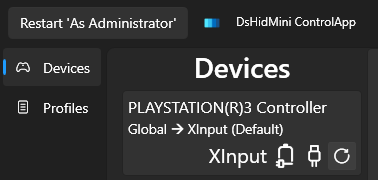
- If you see your controller under "Devices" and it shows "XInput", then DsHidMini is seeing your controller properly. (If you installed BthPS3, remove your USB cable and see if it shows connected with XInput too.)
- Close ControlApp when you are done. On v3.9.0 or newer, the Start Menu shortcut remains available. On an older installer, keep the downloaded ControlApp.exe.
Testing Your Controller in Windows
- On the lower left corner of your screen where it says "Type here to search" in your taskbar, type "joy.cpl", then press ENTER.

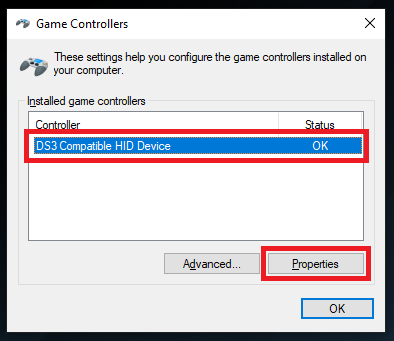
- This opens the "Game Controllers" control panel window. Connect your PS3 controller to your computer with a USB cable or Bluetooth. You should now see your controller in the list as "DS3 Compatible HID Device" with a Status of "OK". Click on the controller to highlight it, then click "Properties".
- On the next screen, make sure that the "Test" tab is selected. Move the joysticks and press each button on your controller to see if everything is working. Click "OK" to exit the Properties window.
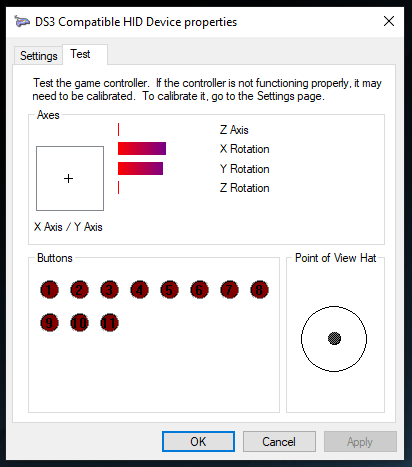
- Optional: you can also confirm buttons and axes in a browser at hardwaretester.com/gamepad.
Congratulations! Your PS3 controller has now been set up and verified working on your computer over USB (and optionally Bluetooth). If it does not, try restarting your computer and try again. If it still does not work, read on here!
Map emulators for full support
You can now map your controller in your emulator of choice like you would any other controller. However, to get full controller support in RPCS3 (PS3 emulator) follow this guide here. To get full controller support in PCSX2 (PS2 emulator), follow this guide here. Happy Gaming!
Updating
If you want to update, simply follow the same installation steps and overwrite any existing files. If it does not work right away, reboot your machine to be safe.
Removal
- The main v3 driver can be removed by uninstalling
Nefarius DsHidMini Drivervia Settings → Apps → Apps & features. On v3.9.0 or newer, that also removes the ControlApp copy and the DsHidMini Control App Start Menu shortcut that the installer added. - BthPS3 can also be uninstalled the same way via Apps & features
- On an installer older than v3.9.0, ControlApp is the ControlApp.exe you downloaded. A newer build you downloaded yourself is also a separate file. Delete that copy on its own if you no longer want it.
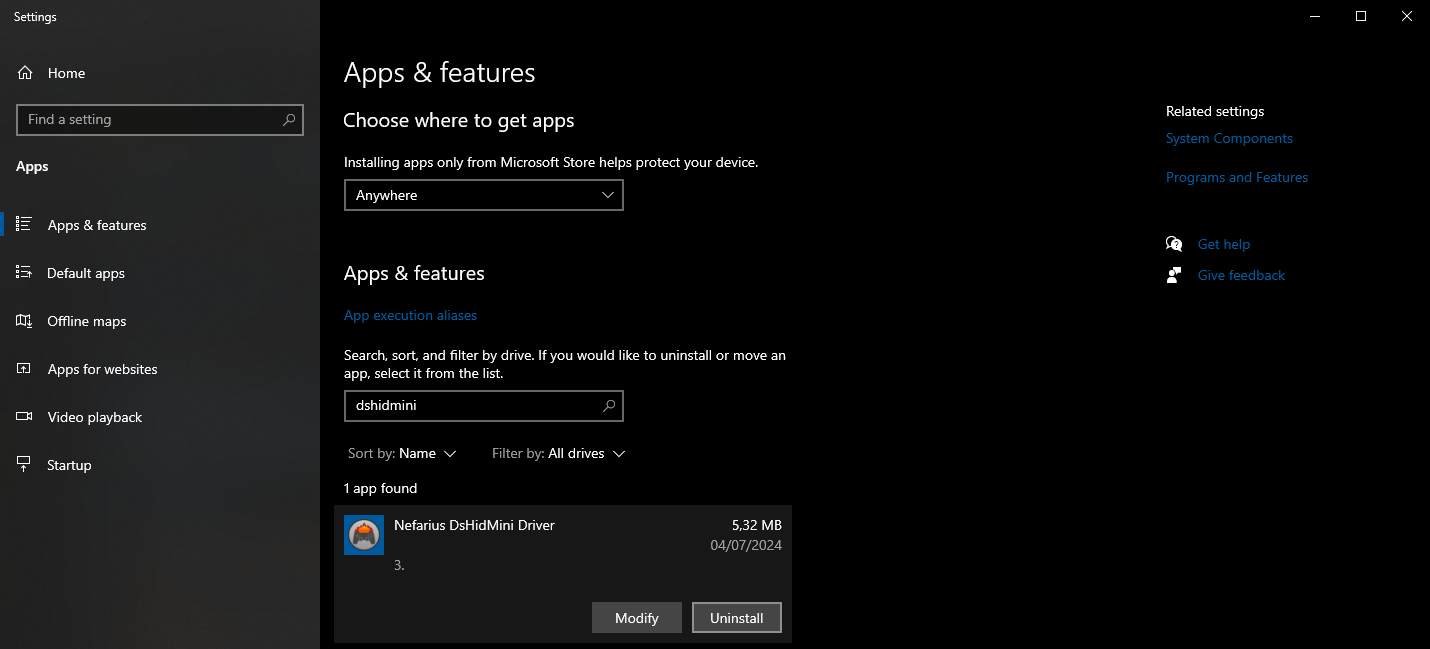
After that, DsHidMini should be fully gone from your computer 😥
Troubleshooting
Conflicting drivers
Handled by the installer
The DsHidMini setup (MSI) automatically detects and handles conflicting drivers (e.g., SIXAXIS.SYS, ScpToolkit, FireShock). No manual removal steps are required—just run the installer.
DSHMC.exe not detecting DsHidMini V3 controllers
DsHidMini V3 uses ControlApp. On v3.9.0 or newer, open DsHidMini Control App from the Start Menu. On an older installer, download and run ControlApp.exe. See Checking Controller with ControlApp.exe.
Controller does not connect by Bluetooth
Open ControlApp and finish first-run setup, or run the in-app Bluetooth diagnostic. See the ControlApp overview and the BthPS3 FAQ for wireless connection issues.
ControlApp asks to set the controller up again
First-run setup is mandatory until it is completed or skipped. If you only use USB, choose Continue with USB only. If you skipped setup and Bluetooth does not work, run ControlApp again and complete the wizard — skipped setups are not a support case.